Folders, font previews, and a clearer canvas
Organize your projects, find the right lettering, and choose what you see while you design.
This update makes it easier to find your projects, choose lettering, and set up your workspace the way you like it.
Keep your projects organized
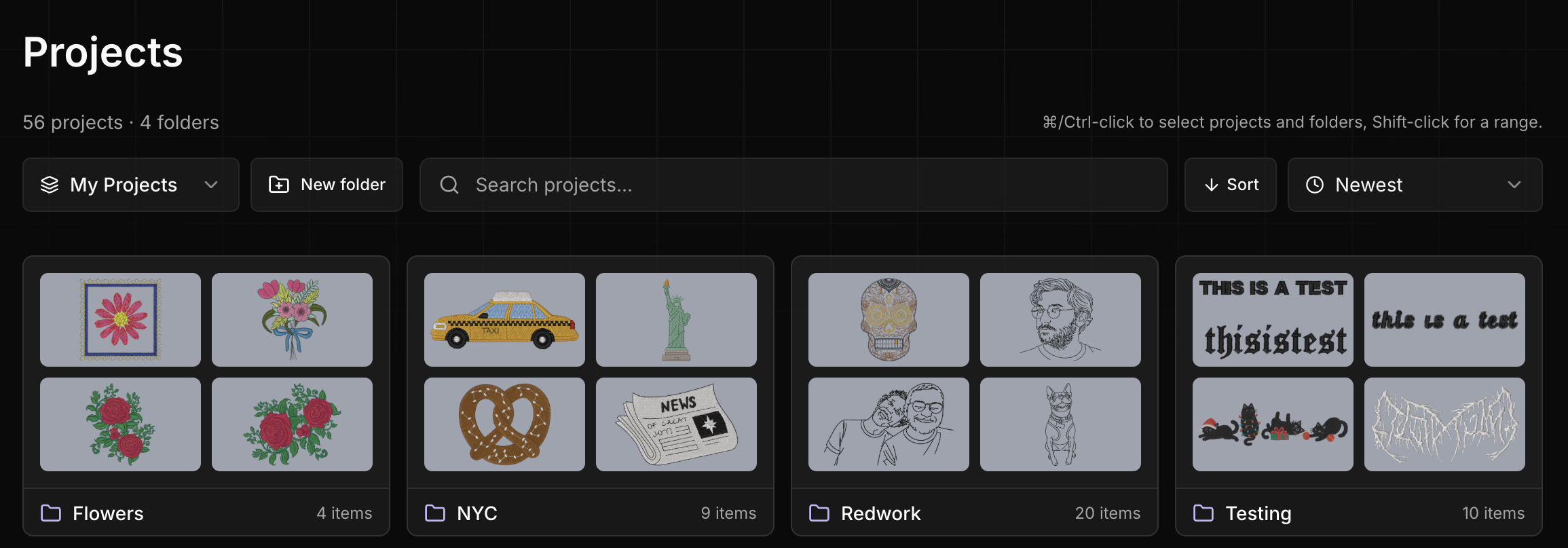
Create folders from My projects to group designs by customer, occasion, or whatever makes sense to you. Each folder shows a preview of the designs inside.
Select projects with Ctrl-click on Windows or ⌘-click on Mac, then choose Move to folder to file them together. Use Shift-click to select a range. Search from My projects to find folder names and designs inside folders.
Folders are your own private organization: moving a design into a folder does not change whether the design is published.
Find the right font before you commit
Compare your lettering
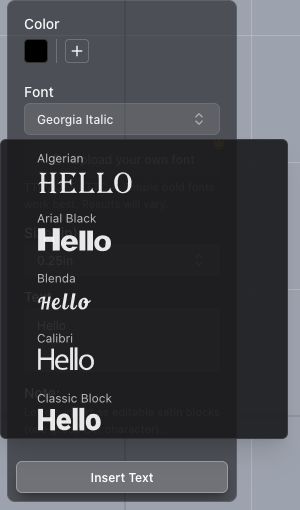
Font names only tell part of the story. The picker now shows stitched previews of your own words, so you can compare the shape and style of the lettering before adding it to your design.
- Enter your text. Open the text tool and type the name, phrase, or initials you want to stitch.
- Browse the previews. Open the font picker to see that same text in each font as you scroll through the list.
- Choose and insert. Pick a font, set the size, and select Insert Text when you're happy with it.
Just browsing? With no text entered, the picker uses a sample to show each font's style.
Try it on the canvas
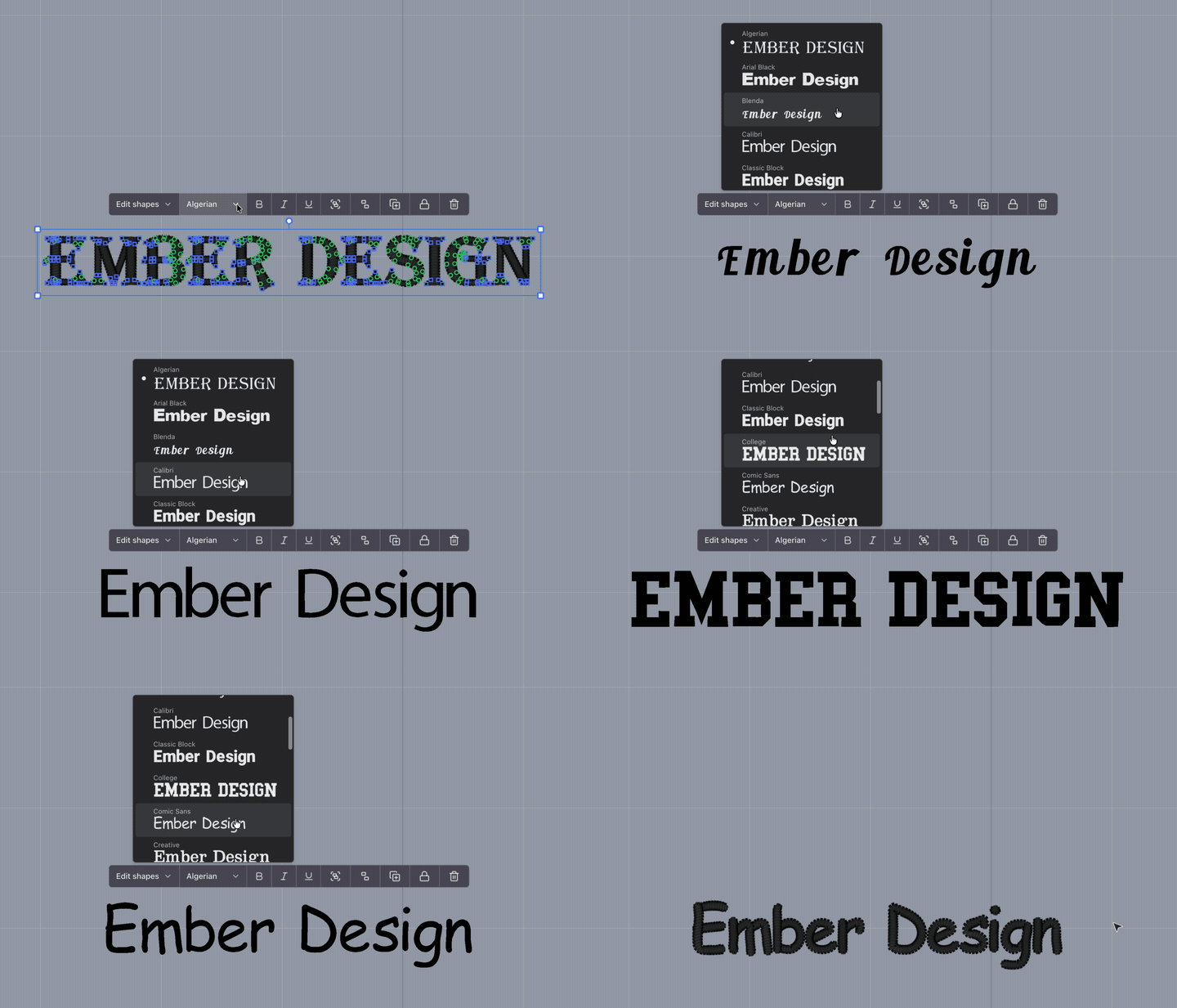
Already have lettering in your design? Select it and open the font picker. Hover over a font or move keyboard focus to it to preview your lettering directly on the canvas, as shown below.
Choose a font to apply it. If you decide to keep the original, simply close the picker without choosing. You can explore different styles without committing to each one.
Choose what you see on the canvas
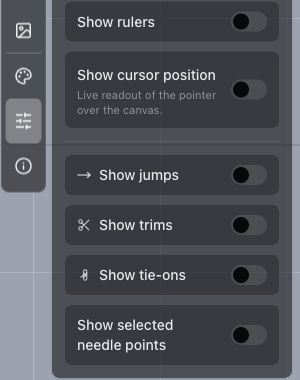
Open Visibility using the sliders icon in the editor's right sidebar. Units, grid size, snapping, rulers, and stitch overlays are now together in one panel.
- Show or hide the grid and rulers, and choose inches or centimeters.
- Snap to a fine grid or align with other shapes' edges and centers.
- Show the cursor position for a live coordinate readout.
- Toggle jumps, trims, tie-ons, and selected needle points to inspect stitch details.