
Shape Settings
Configure fills, outlines, colors, and more for one or multiple shapes.
Shape Settings
This little box of inputs right here is very important. It will allow you to change the properties of any selected shape or shapes, as well as define the properties of a shape you're going to draw or are currently drawing.
One thing to note about this component is that, just like most other things in the editor, it's inputs are dynamic. Meaning, the inputs and options you can manipulate will change depending on the shapes you have drawn and options you've selected.
In this section, we'll dive into how each one of these inputs will affect your shape(s). For deeper details on the kind of stitch output that you can expect from changing settings, look at our Stitch Library section.
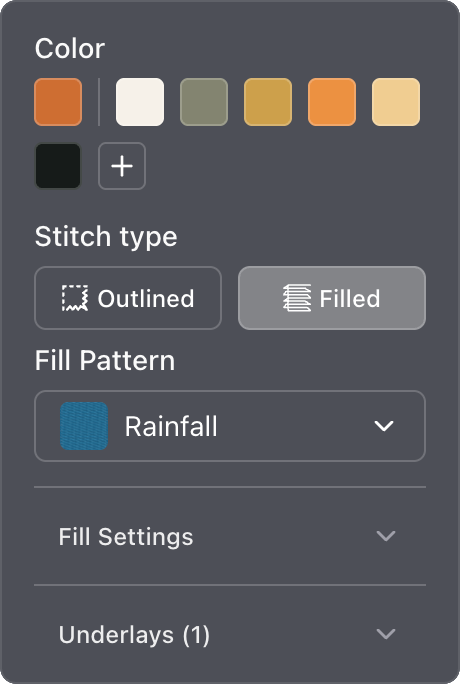
Color
The color section of the Shape Settings is going to be present for any shape you pick. Whether it's filled, outlined, satin blocks, or text, you will always see the color section. The colors you see will represent all of your currently used colors in the design, keeping this list small is ideal.
To add new colors, you can click the "+" button. This will bring up a color wheel that you can use to select a color, or you can use the dropper tool to pick a color from something in the canvas.
Stitch type
Stitch type will only appear for any shapes drawn from the toolbar, excluding "Satin Blocks". This is the spot where you'll decide if you want your shape(s) to be filled or not. Depending on your selection here, you'll see different inputs beneath change.
Outlined
If you've selected "Outlined" for the stitch type, these are the inputs you'll see.
Run type
This will display a list of different run types you select, ultimately changing the pattern of the run. For a detailed explanation of each run type and its associated settings, check out the Outlines section of the Stitch Library.
Filled
If you've selected "Filled" for the stitch type, these are the inputs you'll see.
Fill pattern
This is your fill pattern selector. You can open this to see a selection of different fill patterns to choose from, click some and try them out! Each fill might have settings that are unique — for more on that, check out the Fills section of the Stitch Library.